Shopify is clearly trying to fix that.
Now, your Shopify analytics dashboard can surface data-driven insights directly at the top of the page, so you see the story behind the numbers, not just the numbers.
This post breaks down what’s new, where to find it, how the insights are generated, what the status badges actually mean, and a simple way to turn an insight into a next action you can ship today.
What’s new : data-driven insights built into your Shopify analytics dashboard
The update, in plain language : Shopify now adds an automated stream of insights on your analytics dashboard. It’s not replacing reports. It’s more like a smart layer sitting on top of your existing analytics, pulling out the most important changes and calling them out for you.
So instead of opening analytics and hunting for what matters, you open analytics and immediately see something like :
- Returning customer sales trending up for multiple weeks
- A region that suddenly became a top performer
- A drop in sessions from a channel that used to be steady
- Fulfillment delays increasing, right when orders are rising
When Shopify says “data-driven insights” here, they don’t mean vague advice. They mean :
- Summarized top findings (the headline)
- Directional signals (up, down, standout)
- Context (what changed, where it changed, and the likely shape of why)
Also important. These insights are run daily and Shopify surfaces the top 5 findings ranked by business impact. So it’s not trying to show you everything. It’s trying to show you the five things most worth your attention when you open the dashboard.
By the end of this article, you’ll know :
- how Shopify is generating these insights (practically speaking)
- how to read the status badges like Trending Up, Trending Down, Top Performers
- how to validate an insight fast, so you don’t overreact
- how to turn each insight into a concrete next step, without spiraling into analysis paralysis
Where these insights show up (and what they’re looking at)
On your analytics dashboard, you’ll now see a stream of insights at the top of the page. It’s basically the first thing you hit before you scroll down into the usual dashboard cards and reports.
Think of it like a “what changed since last time” feed.
It complements existing reports because it does not ask you to start with a question. It starts by saying : here are the changes we think matter. Then you can click into the details.
What data the insights can reference
Shopify’s insights analyze, at minimum, the kinds of data most merchants already rely on :
- Sales data : gross sales, net sales, orders, AOV, customer purchase behavior
- Sessions data : traffic volume, channel sessions, landing page performance, conversion flow indicators
- Fulfillment data : shipping performance, fulfillment times, delays, cancellations (depending on what’s available in your setup)
The “slices” Shopify uses to spot patterns
Insights get interesting when the system can segment performance. Shopify commonly slices by things like :
- Products (or collections, variants, categories depending on reporting level)
- Regions (countries, states, cities, shipping zones)
- Channels (organic, paid, email, social, direct, referrals, etc)
- Customer types (new vs returning, and other customer groupings you might have)
A note on timing and freshness
These can feel closer to real-time analytics because they refresh frequently and are meant to reflect what’s changing now. But they still depend on :
- when data is available
- attribution windows (especially for marketing channels)
- delayed events (refunds, chargebacks, fulfillment status updates)
So yes, it’s fast. Just not magic. Sometimes the “why” becomes clearer a day later.
 Zakia
Zakia
How Shopify analytics insights work (in practical terms)
At a high level, Shopify is scanning your store performance for :
- unusual changes (spikes or drops)
- emerging trends (consistent movement over time)
- standout segments (a product, region, or channel that’s clearly outperforming others)
Then it summarizes the finding into a readable insight instead of handing you a chart and saying “good luck.”
The main pattern types you’ll see
1. Spikes and drops (trend detection)
Example : sessions down 18 percent week over week from a specific channel. Or orders up sharply after a steady period.
2. Winners and losers (top performers)
Example : one region or one product is driving a disproportionate share of sales compared to the rest.
3. Mix shifts (share changes)
This is the subtle one. Your total sales might be flat, but the mix changes. Like. Paid social is now 40 percent of traffic instead of 25 percent. Or returning customers are now carrying revenue while new customer conversion dips.
The “business impact” framing
A good insight is not just “metric changed.” It’s “metric changed and it matters because…”
Shopify ranks insights by business impact, which usually maps back to outcomes like :
- revenue and orders (obvious)
- conversion rate changes (especially when sessions are stable)
- AOV shifts (pricing, bundling, discounting effects)
- fulfillment delays (which can turn into cancellations, refunds, bad reviews)
- traffic quality (sessions up but conversion down is a classic warning)
What you should sanity check before acting
Even when an insight is accurate, the cause can be totally normal. So before you change anything, do a quick reality check :
- Seasonality (weekends, paydays, holidays, weather, local events)
- Promotions (discount codes, bundles, free shipping thresholds)
- Ad changes (budget increases, creative swaps, campaign pausing)
- Stockouts (out of stock products can make “conversion dropped” look scarier than it is)
- Shipping or fulfillment delays (carrier issues, warehouse backlog)
- Tracking issues (broken UTMs, inconsistent campaign naming, channel attribution shifts)
Basically. Confirm it’s real. Then decide.
How to interpret the status badges (and avoid misreading them)
Each insight comes with a status badge. It’s meant to be a quick signal. Not a verdict on your business.
Trending Up
This usually means a metric is increasing relative to a prior period, or rising consistently across multiple runs.
What it could look like :
- A product is trending up in sales over the last 7 days
- Returning customer revenue is trending up for 8 consecutive weeks
- Sessions from email are trending up after a campaign refresh
What not to assume : trending up does not automatically mean “scale everything.” Sometimes it’s a one-time effect from a promo or a restock.
Trending Down
This calls out declines that matter. It could be a volume drop, a conversion drop, or a performance drop inside a segment.
Examples :
- A region trending down in sales (could be shipping cost changes, delivery times, local demand)
- A channel trending down in sessions (could be ads paused, SEO dip, tracking)
- Conversion trending down while sessions are flat (often site speed, offer mismatch, out of stock, pricing)
What not to assume : trending down is not always a marketing problem. A stockout can cause it. Fulfillment delays can cause it. Even a theme change can cause it.
Top Performers
This badge is more "this is driving results right now" than "this is increasing."
Examples of top performers include : a region becoming your top performer by sales, a product leading revenue or conversion in the last period, or a channel outperforming others on sales per session (a good proxy for quality).
What not to assume : top performer does not mean it will stay that way. It's a snapshot that should trigger a question. Why is it winning right now ?
How to validate an insight fast
Do this every time, even when you're excited.
- Click through to the underlying report — don't just trust the summary.
- Compare time ranges — today vs yesterday can be noisy. Week over week is often clearer.
- Check related metrics in a chain : sessions → add to cart → conversion rate → orders → sales → refunds/cancellations.
If a channel's sessions are down but conversion is up, the story is different. If sales are up but refunds are also up, also different.
 Zakia
Zakia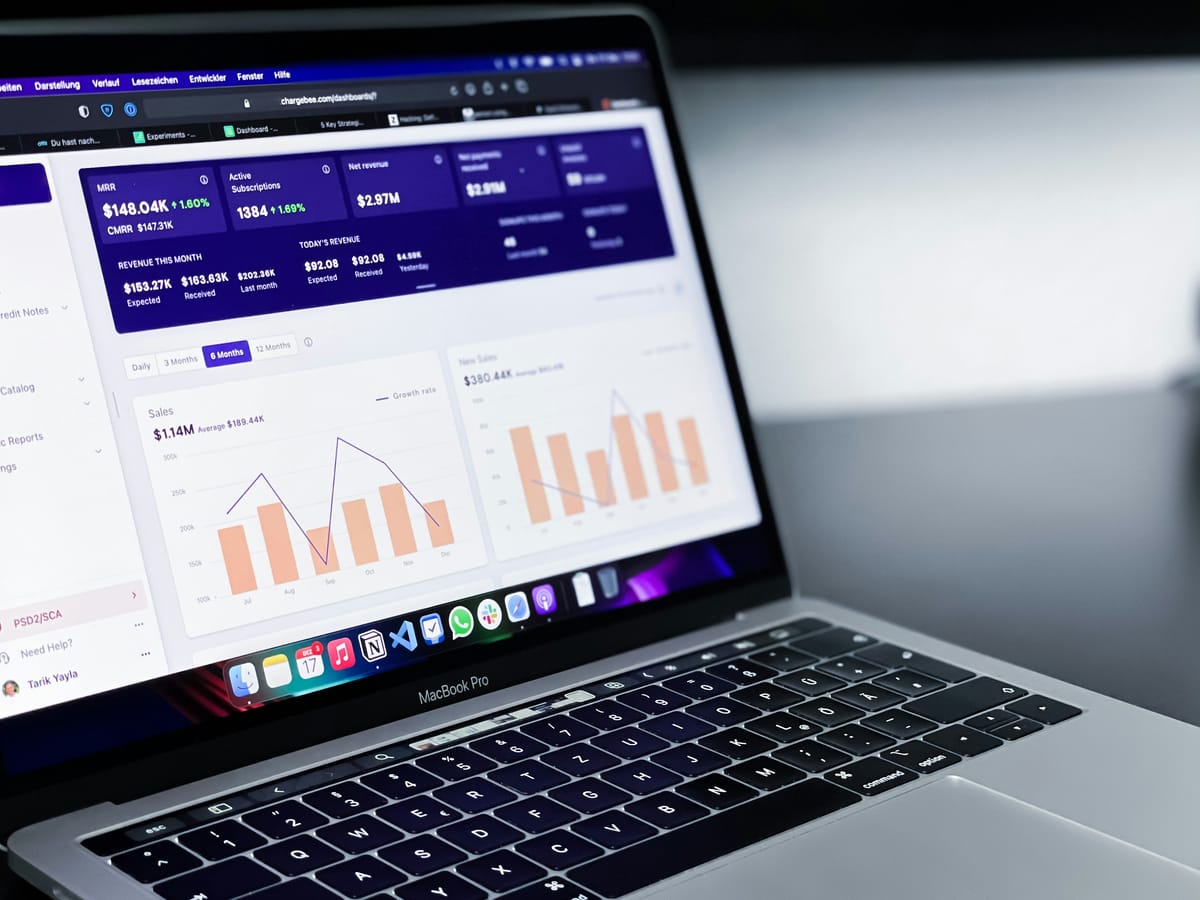
The most useful insight categories you'll see (with examples to model your decisions)
Here's where these insights become genuinely practical. They nudge you toward decisions you would have made anyway, but faster. And with less guesswork.
1. Sales trends (revenue, orders, AOV)
What you might see
- Gross sales trending up over the last 7 days
- Orders trending down while AOV is stable
- AOV trending up after a bundle launch
What to do next
- If revenue is up and conversion is stable, consider scaling traffic to the same offers.
- If orders are down but sessions are stable, look at product availability, pricing, and checkout friction.
- If AOV is up, figure out what's driving it (bundles, upsells, free shipping threshold) and reinforce that in merchandising.
2. Customer behavior (new vs returning)
What you might see :
- Returning customer sales trending up for multiple weeks
- New customer conversion trending down while returning stays strong
What to do next :
- Double down on loyalty campaigns if returning is rising (post purchase flows, VIP perks, reorder reminders)
- If new customers are slipping, check your first purchase offer, landing pages, social proof, shipping clarity
Returning behavior is a signal. It’s saying the product experience is working. Now the job is scaling acquisition without breaking margins.
3. Traffic and sessions (channel quality, landing pages)
What you might see :
- Sessions up from a channel, but sales flat
- A channel becomes a top performer on sales per session
- Landing page traffic shifts after a campaign launch
What to do next :
- Reallocate budget toward the channel with better quality, not just more clicks
- Refresh creative if sessions are high but conversion is dropping
- Audit landing page speed, clarity, and offer alignment
A basic rule. Don’t chase traffic. Chase profitable sessions.
4. Fulfillment insights (delays, cancellations, delivery performance)
What you might see :
- Fulfillment times increasing this week
- Cancellations rising in a specific region
- Delivery performance dipping after a carrier change
What to do next :
- Rebalance inventory if certain regions are suffering
- Adjust carrier mix or shipping cutoffs
- Update messaging on delivery estimates so support tickets don’t explode
Fulfillment insights are underrated. A small delay can quietly eat your repeat purchase rate.
5. Segment insights (regions, products, customer types)
What you might see :
- A region becomes the top performer by sales
- A product category is trending up while others are flat
- One channel dominates new customer acquisition, another dominates returning purchases
What to do next :
- Localize offers for winning regions (currency, shipping options, ETA messaging, region specific bundles)
- Adjust inventory allocation so the winners don’t stock out
- Expand shipping options where demand is clearly showing up
These are the insights that feel like found money. You were already sitting on the signal, you just didn’t have time to slice it.
Using insights to decide your next best action (a simple workflow)
When you see an insight, you don’t need a 2 hour deep dive. Use a quick workflow and move.
Step 1 : Read for “what changed” and “where”
Identify :
- the metric (sales, sessions, conversion, fulfillment time)
- the segment (product, region, channel, customer type)
- the time context (today, last 7 days, last 8 weeks, etc)
Step 2 : Confirm business impact with 2 to 3 supporting metrics
Pick a small set, depending on the insight :
- sessions
- conversion rate
- gross sales / net sales
- orders
- refunds / cancellations
You’re trying to answer : is this just noise, or is money moving ?
Step 3 : Diagnose likely causes quickly
Run through a short checklist :
- did we run a promo ?
- did ad spend change ?
- did we change the site (theme, checkout, pricing, shipping threshold) ?
- did we go out of stock ?
- are there shipping delays ?
Keep it simple. You are not writing a thesis.
Step 4 : Choose an action
Match the action to the badge :
- Top Performers : scale winners
- Increase inventory coverage, feature it on the homepage, push it in email, extend the offer, expand targeting.
- Trending Down : fix leaks
- Check stock, shipping ETA, landing page alignment, channel tracking, checkout friction.
- Trending Up : reinforce and test
- Keep what’s working, then test one variable to see if you can sustain it without killing margin.
Step 5 : Set a follow up check
Decide what you’ll monitor and when :
- tomorrow for fast moving issues (traffic, ads, stock)
- next week for slower signals (repeat purchase, fulfillment trends)
If you don’t schedule the check, you’ll never know whether your “fix” worked.
 Zakia
Zakia
Go deeper with Sidekick : turning a dashboard insight into a clear answer
When you click See why on an insight, Shopify opens the full report and Sidekick launches alongside it with the insight pre-loaded. This is the part that makes the feature feel less like a notification and more like a workflow.
Sidekick is basically the assistant layer that helps you explore the “why” faster, without you having to dig through five reports manually.
The best way to ask Sidekick questions
Start from the insight, then ask for breakdowns and comparisons.
Good follow-ups look like :
- “Which products drove the spike ?”
- “Which regions dropped the most ?”
- “Did conversion fall or just sessions ?”
- “What changed compared to the previous period ?”
- “Which channel has the best sales per session here ?” (a decent ROAS proxy when you’re staying inside Shopify data)
Use Sidekick responsibly
Sidekick can help you move faster, but you still want to :
- verify the answer in the underlying report
- be careful with attribution (channels overlap, view through effects exist)
- keep notes on what you changed so you can interpret future insights clearly
Which leads to the next section.
Common pitfalls (and how to keep insights accurate and actionable)
A few ways merchants can accidentally misuse insights.
Acting on a single metric
Sessions down does not automatically mean “ads are failing.” It could mean :
- conversion improved and you need less traffic
- tracking changed
- traffic shifted from one channel bucket to another
Tie sessions to conversion and sales before making a call.
Attribution mess and channel overlap
If your UTMs and campaign naming are inconsistent, insights can point you toward the wrong lever.
Keep UTMs clean. Keep naming consistent. It’s boring. It also fixes a lot.
Ignoring operational constraints
Sometimes the insight is a symptom of inventory and fulfillment realities, not demand.
- stockouts can look like conversion drops
- shipping delays can look like regional demand drops
- fulfillment capacity can cap growth even when a product is a top performer
Forgetting customer types
New vs returning shifts matter. If returning is strong but new is weak, that’s often an acquisition and first order offer problem. If new is strong but returning is weak, that’s often a product expectation, post purchase, or retention problem.
No annotations, no memory
If you don’t track changes, you’ll always be guessing.
Keep a simple changelog. Promo launches, theme edits, pricing updates, shipping changes, big ad budget moves. Future you will thank you.
What to do next : build a weekly “insights review” habit inside Shopify
This feature is most powerful when it becomes a habit, not a novelty.
A lightweight cadence that works for most stores :
- Daily (5 minutes) : scan Trending Up and Trending Down. Look for urgent leaks or sudden winners.
- Weekly (30 to 60 minutes) : review Top Performers and lagging segments. Decide what to scale and what to fix.
A repeating checklist (simple, but it works)
Each week, review insights across :
- products
- regions
- channels
- customer types
- fulfillment signals
Then capture :
- top 3 findings
- the action you took
- the metric you’ll check next week
Tie insights to experiments
Try this structure :
- one growth test each week (scale a winner)
- one fix test each week (repair a drop)
Even small tests compound when you do them consistently.
The core takeaway here is pretty straightforward. Shopify’s analytics dashboard insights help you spot business trends faster. Your advantage comes from validating them quickly, then acting consistently.
Conclusion
Shopify’s analytics dashboard is shifting from “here are your numbers” to “here’s what’s changed and what matters.”
You’ll now see a daily stream of insights at the top of your dashboard, showing the top five findings based on impact, with status badges like Trending Up, Trending Down, and Top Performers. And when you click See why, you can jump into the full report with Sidekick ready to help you ask better follow-up questions.
Use it the right way and you spend less time digging. More time deciding. And honestly, more time doing the boring but profitable work. Fix the drops, scale the winners, and keep your notes so next week’s insights make even more sense.
FAQs (Frequently Asked Questions)
What are the new data-driven insights in Shopify analytics dashboard ?
Shopify has introduced an automated stream of data-driven insights directly on your analytics dashboard. These insights highlight the most important changes in your store's performance, such as trends in returning customer sales, regional top performers, drops in sessions from specific channels, and fulfillment delays. They provide summarized top findings, directional signals (up, down, standout), and context to help you understand what changed, where, and why.
Where can I find these data-driven insights in my Shopify analytics ?
The data-driven insights appear as a stream at the top of your Shopify analytics dashboard. This is the first section you see before scrolling down to the usual reports and charts. It acts like a 'what changed since last time' feed, surfacing the top five findings ranked by business impact to quickly show you what matters most.
What types of data do Shopify's insights analyze ?
Shopify's insights analyze key data types that merchants commonly rely on, including sales data (gross sales, net sales, orders, average order value, customer purchase behavior), sessions data (traffic volume, channel sessions, landing page performance, conversion flow indicators), and fulfillment data (shipping performance, fulfillment times, delays, cancellations) depending on your store setup.
How does Shopify generate these analytics insights ?
Shopify scans your store's performance daily for unusual changes like spikes or drops, emerging trends over time, and standout segments such as products or regions outperforming others. It then summarizes these findings into readable insights instead of just presenting raw charts. The main patterns detected include trend detection (spikes/drops), winners and losers (top performers), and mix shifts (changes in traffic or sales share).
What do the status badges like Trending Up or Top Performers mean in Shopify insights ?
Status badges indicate the nature of the insight : 'Trending Up' means a metric is increasing consistently; 'Trending Down' indicates a consistent decrease; 'Top Performers' highlights segments like products or regions that are significantly outperforming others. These badges help quickly identify the direction and significance of changes in your store's metrics.
How should I validate and act on Shopify's analytics insights ?
Before making any changes based on an insight, perform a quick sanity check to understand if the cause is normal or requires action. Consider factors like data timing delays or attribution windows. Once validated, turn each insight into a concrete next step without falling into analysis paralysis—for example, investigating fulfillment delays if they are increasing during rising orders or adjusting marketing strategies if session drops occur from key channels.